
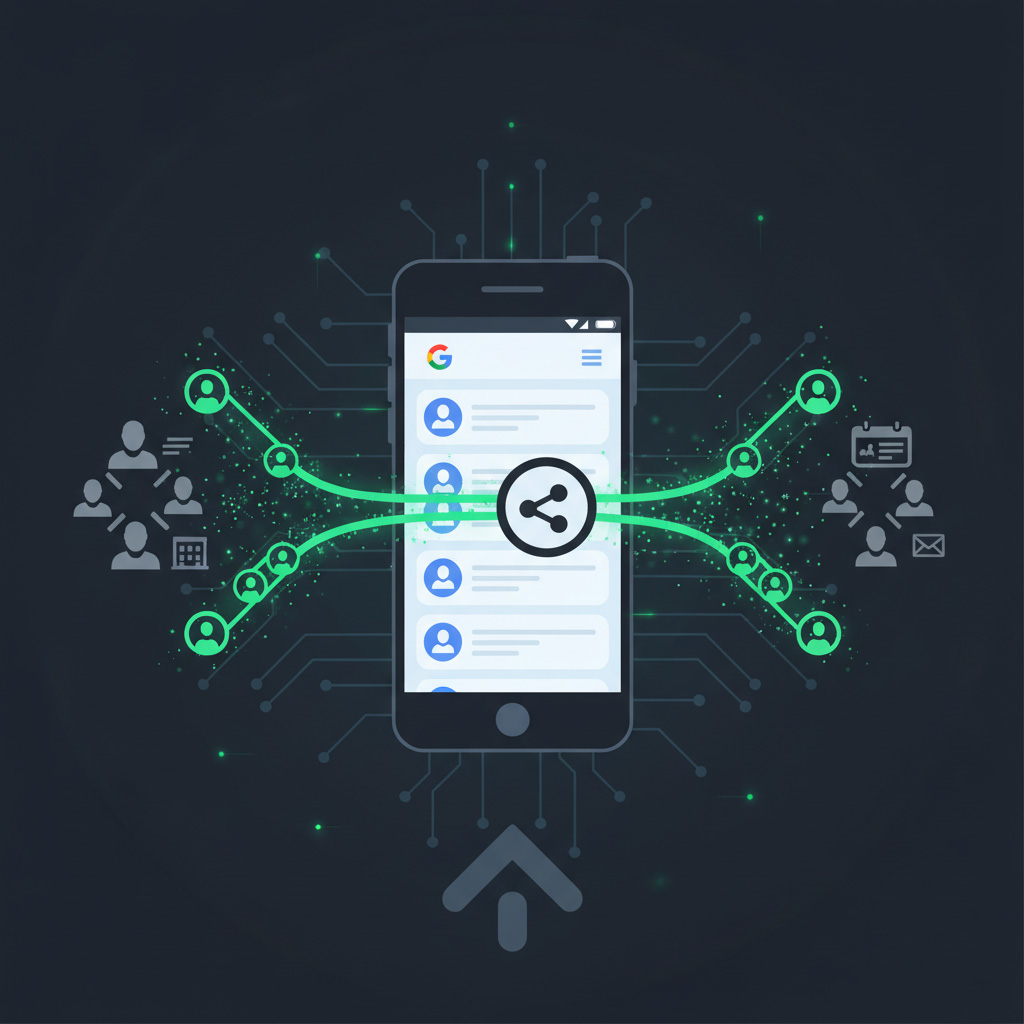
Whether you are managing a boutique sales team or coordinating a busy household, keeping everyone’s contact list up to date is a common challenge. Most people rely on Google Contacts to store their important information, but sharing that data effectively isn’t as intuitive as it seems.
In this guide, we will show you the standard manual way to share contacts and explain why a synchronized approach is the key to keeping both professional teams and families on the same page.
TL;DR: Sharing vs Syncing Google Contacts
- The standard way to share Google Contacts with others is to export a CSV file, send it, and let the other person import it – but that creates a one-time, static copy.
- Static copies go out of date quickly; whenever a phone number or email changes, you have to repeat the export/import process from scratch.
- A synced approach keeps a single master list in Google Contacts and automatically updates everyone’s devices, so teams and families always see the same, correct information.
Option 1 – Share Google Contacts by exporting and importing
The most common way to move contacts from one Google account to another is through a manual file transfer. This is the “old-fashioned” way to share data between colleagues or family members.
- Select Your Contacts: Open Google Contacts on your computer. Select the specific contacts or the “Label” group you wish to share.
- Export to CSV: Click the Export button in the sidebar. Choose “Google CSV” as the format.
- Transfer the File: You must then send this file to the other person via email, a messaging app, or a shared drive.
- Import to the New Account: The recipient opens their Google Contacts, clicks Import, and uploads the file you sent.
The “Static” Problem: Why Manual Sharing Fails
The biggest drawback to this method is that it creates a static copy. There is no live connection between your list and theirs. If you update a phone number in your account tomorrow, the other person will still have the old one unless you repeat the entire process.
Option 2: Share Google Contacts by syncing a master list
Introducing LabelGlow: Shared Contacts for Teams and Families
Manual exports work for a one-time move, but they don’t solve the problem of staying in sync. That is why we developed LabelGlow.
LabelGlow is a synchronization engine that allows you to share Google Contact labels with anyone, be it a department at work or your family members at home. Instead of sending files back and forth, LabelGlow ensures that when a contact is updated for one person, it is updated for everyone.
One Solution for Every Type of Team
For Business Teams:
Stop letting your sales and support staff waste time on data entry. With LabelGlow, new hires simply subscribe to a label (e.g., “Active Clients”), and their phone is instantly populated with every relevant contact.
For Families and Households:
Keep the whole family connected without the “What’s the number for…?” text messages. Create a “Family” label for the nanny, the neighbors, and the pediatrician. If one parent updates a contact, it’s fixed on everyone’s phone instantly—including the grandparents.
Is it better to export Google Contacts or sync them with LabelGlow?
| Feature | Manual Export/Import | LabelGlow Sync |
|---|---|---|
| Updates | Manual (must re-send files) | Automatic (real-time) |
| Accuracy | Degrades quickly | Single Source of Truth |
| Mobile Ease | High friction | Native Integration |
Stop Shuffling Files. Start Staying in Sync.
Whether you are managing corporate leads or important family contacts, you shouldn’t have to be a data manager. LabelGlow keeps one shared Google Contacts directory in sync for your entire group, so everyone always sees the same, correct information.
Next steps: Put shared Google Contacts on autopilot
If you are done exporting CSV files and chasing down the latest phone numbers, here are practical next steps you can take today:
- See how LabelGlow works with Google Contacts.
Learn how a shared Google Contacts directory for teams is set up and maintained in LabelGlow on the How It Works section. - Pick the right plan for your team or family.
Compare options on the LabelGlow Plans section. - Fix mobile issues where contacts don’t match.
If your Android and iOS contact lists look different, read Android vs iOS: Why your Google Contacts sync differently on every phone. - Explore more real-world use cases.
See how synced labels help with events, projects, and households in:
Planning an event? Sync your guest list and
Managing projects: Why you need live labels.